- Step 6 - Consecutive Lessons / Settings
- In Step 6 you have the options to give your timetable a final touch and make it more comfortable for your teachers and students, in addition to being able to define the processing priorities and the possibility of pinning time slots.

- Below is the explanation of the function of each item:
- Consecutive Lessons (General, by Teacher, by Subject and Detailed)
- You have the options to limit how much your timetable will have consecutive lessons. See the options:
- Not Specified
- By not specifying the type of consecutive lessons, Horário Fácil will allocate the time slots without this restriction. The lessons may be together or not, being able to be all together or totally separated as needed. This is the least restrictive option of all.
See an example of a solution with this option: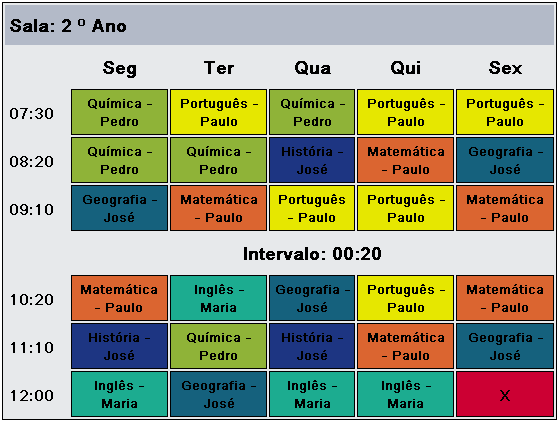
- Do Not Make Consecutive - The system will try to separate all lessons, allowing interleaving
- Choose this option if, in your timetable, for whatever reason, it is not desirable to have lessons in a row. Horário Fácil will try to space out the lessons if possible.
See an example of a solution with this option: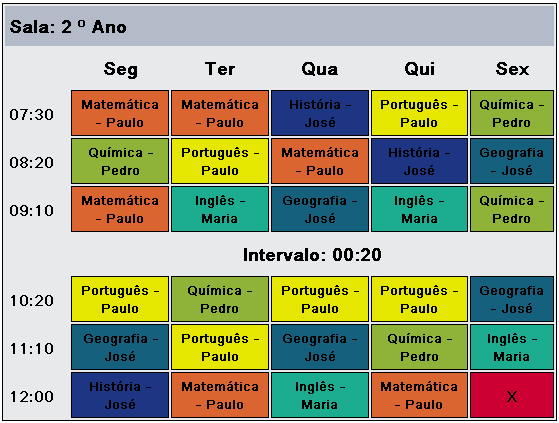
- Do Not Make Consecutive - The system will allow only 1 lesson of each subject per day
- Unlike the previous option, this one is highly restrictive. It means that Horário Fácil will only allow 1 lesson of the subject per day and consequently will not make them consecutive.
- We recommend this option ONLY in very specific cases and small timetables.
- Mandatory Consecutive - The system will only allow double lessons of this Subject or Teacher
- This option is extremely restrictive. It means that Horário Fácil will not allow just 1 lesson of the subject per day. This option is available only for Consecutive by Teacher and by Subject.
- Use this option with caution, for example for physical education, laboratory, etc.
- 2 - The system will try to group at most 2 lessons (2 in a row)
- Less restrictive than the previous option, this one will make Horário Fácil try to group at most 2 lessons in a row per day.
See an example of a solution with this option: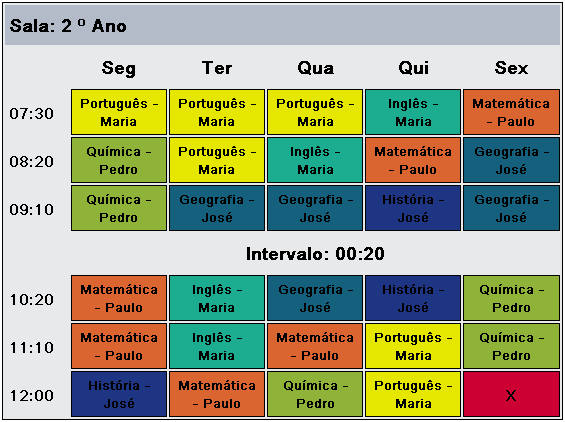
- 3 - The system will try to group at most 3 lessons (3 in a row)
- Less restrictive than the previous option, this one will make Horário Fácil try to group at most 3 lessons in a row per day.
See an example of a solution with this option: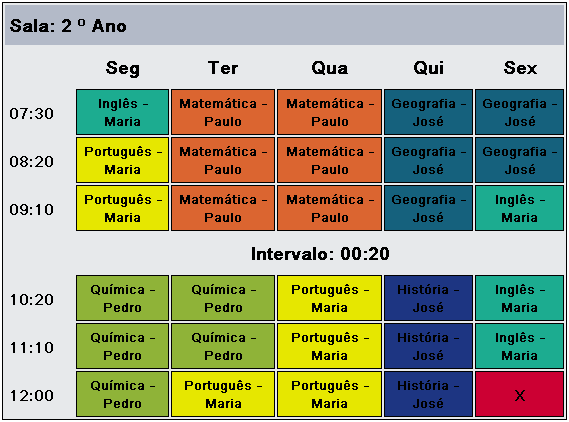
- 4 - The system will try to group at most 4 lessons (4 in a row)
- Less restrictive than the previous option, this one will make Horário Fácil try to group at most 4 lessons in a row per day.
- 5 - The system will try to group at most 5 lessons (5 in a row)
- Less restrictive than the previous option, this one will make Horário Fácil try to group at most 5 lessons in a row per day.
- Make Consecutive Without Limit - The system will try to group as many as possible
- Less restrictive than the previous option, this one will make Horário Fácil try to group as much as possible per day.
- Pin Time Slots
- This option is highly restrictive if used. Pinning a time slot can harm other teachers and even make a possible solution for your timetable unfeasible.
Only use this option if you already have experience in creating timetables and know the consequences of pinning a teacher's time slot.
Para fixar um horário simplesmente clique com o mouse no horário desejado em seguida selecione a matéria a ser alocada. Caso a matéria tenha mais de 1 professor, você deverá selecionar qual professor será alocado. - Processing Parameters
- This option serves to instruct our servers about what should or should not be included in the next processing. In addition, it is possible to determine which processing items are most important for your timetable by defining a processing order.
For example, if for a given timetable it is more important to "Eliminate the Teachers' Gaps" than to "Make the Timetable Consecutive", then set a LOWER ORDER for the first item. Horário Fácil always runs in the order of these parameters and, upon encountering an impossibility in solving a given restriction, automatically relaxes these options in order to give you a preview of the solution, so that you can make the necessary adjustments and reprocess.
Below are the options of the Processing Parameters: - Class group availability
- Performs the processing in accordance with the availability of the class groups registered in STEP 4. This option cannot be disabled and its order cannot be changed.
- Teacher availability
- Performs the processing in accordance with the availability of the teachers in STEP 5. Understand availability as the blocked time slots together with the registered fixed or movable days off. This option cannot be disabled and its order cannot be changed.
- Class Group Assignment
- In Step 5 you have the option to pin teachers to class groups, but you must know exactly where to allocate the teacher if you have chosen to use this feature, because Horário Fácil automatically allocates teachers in a way that gives the best solution in terms of the other restrictions together. If you want Horário Fácil to choose which teacher should be allocated to the class groups instead of your choices, uncheck this option to do so without having to change everything you registered in Step 5.
- Teachers with Priority in lesson allocation
- If there is competition between teachers who teach the same subjects in the same class groups, Horário Fácil will first allocate the teachers with the highest priority until the grid is filled. Configure the teachers' allocation priorities in Step 5
- daily limits
- Horário Fácil will try to allocate teachers respecting the daily limits established in STEP 5, unless you disable this option.
- Weekly Limits
- Horário Fácil will try to allocate teachers respecting the weekly limits established in STEP 5, unless you disable this option.
- Fixed Lessons
- Horário Fácil will try to respect the pinned time slots that were designated in STEP 6, unless you disable this option.
- Minimize the teachers' days
- If, for example, your timetable has 5 daily lessons and one of your teachers has a weekly workload of 5 lessons, it would be interesting for this teacher to work on just 1 day, but how to solve this problem for all teachers, respecting their availabilities and all the other restrictions. This is generally the biggest mistake we find in the registrations for building timetables. Many try to minimize the teachers' days by closing all of their availabilities in Step 5. This is an extremely not recommended procedure and will only make the probability of a solution remote. Horário Fácil automatically minimizes the teachers' days unless this option is disabled. Therefore, in Step 5, only block the teachers' availability on the days / time slots they really cannot teach and let Horário Fácil minimize their working days by keeping this option enabled.
- Eliminate the Teachers' Gaps
- This is one of the most requested problems in building timetables. Em muitas instituições, horários vagos para os professores são remunerados causando prejuizos para a mesma. Quando não são remunerados causam desconforto para os professores que tem o horário ocioso em seu expediente.
Por padrão, o Horário Fácil sempre eliminará as janelas dos professores a menos que você desabilite esta opção. - Alternating lessons
- In general, alternating lessons cause discomfort for students and teachers. It means, for example, a class having a mathematics lesson followed by Portuguese and then mathematics again. By default, Horário Fácil will always try to eliminate the alternating lessons unless this option is disabled.
- Gaps in the students' schedule
- Gaps in the students' schedule cause discomfort for them and disorganization in the institution, because just imagine what the students will do during the free time while they wait for the next lesson. By default, Horário Fácil will always try to eliminate the gaps in the students' schedule unless this option is disabled.
- Consecutive Lessons Configuration
- In this Step 6 there are the options to define the consecutive lessons configurations by subject, by teacher, general or detailed. Disabling this item in the processing parameters is equivalent to running the timetable solution with all the consecutive lessons configuration options set to "NOT SPECIFIED".