
- Building a timetable is often an infinite combinatorial problem where the solution is very hard to find, even computationally.
- We created this tutorial with tips so that you can build your timetable without falling into the common traps of this procedure.
- If you have already tried Horário Fácil, you already know that the procedure consists of 6 easy-to-fill steps.
If you haven't done so yet, start the free trial to get to know it. - Step 1 - Basic timetable information
- This step consists only of registering an identification for your timetable.
- You can register 1 or more timetables in your Horário Fácil account. Use these four fields to identify them with your own approach.
- See an example:
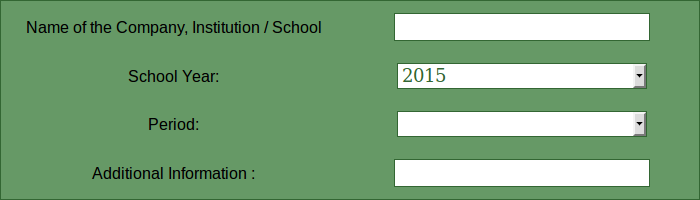
- The fields are not mandatory.
- Then, click the "Next Step" button at the bottom of the screen or at the top on the right side.
- Step 2 - Creating the operating week
- The first challenge when creating your timetable is to build your institution's operating week correctly, as this step will be crucial for the rest of the process. The week must represent exactly the days and times the institution operates.:
- Example 1: Week starting with the first lesson at 7:30, with 6 lessons per day, except Friday which does not have the last lesson. 50-minute lessons and a 20-minute break after the 3rd lesson of the day.
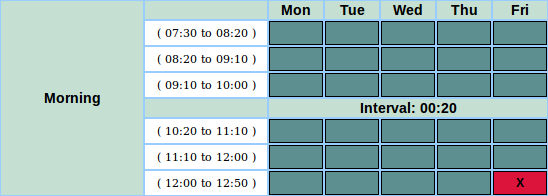
- Do not leave this step until your week is perfectly represented.
- Common question: If some class groups have different times, how do I build my week?
- Answer: If, for example, you are building the timetable for high school (6 lessons per day) and elementary school (5 lessons per day), then you must build your week with the longer period. In Step 4 you have the option to block this last time slot for the elementary school class groups.
- Only build the timetable this way if the teachers are shared between these class groups with different operating hours. Otherwise, build one timetable for elementary school and another timetable for high school. The cost will be the same, based on the total number of class groups.
- Step 3 - Subjects
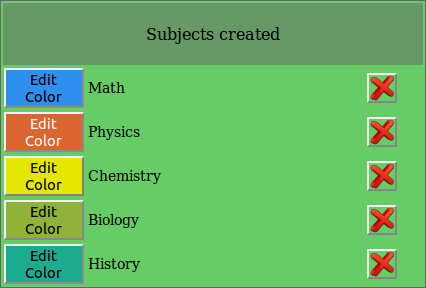
- Step 3 is extremely simple. Just register each subject that will be taught in this timetable and assign a color to it. The system automatically assigns a color to a newly created subject. You can change it by clicking the Edit Color button.
- See an example
- Step 4 - Class groups and timetable grid
- In this step you must inform which the class groups are and the curriculum grid of each one of them.
- See the Step 4 options:

- Each class group can optionally have an operating-hours restriction. For this, each class group has a table of the week you created in Step 2, where you can enable / disable the class group's operation.
- Use this option if, for example, you are building a timetable for high school and elementary school with teachers shared between them, where high school has 6 lessons per day and elementary school has 5 lessons per day.
- See an example: "Class Group: 1st Year of High School" with no operating restrictions, and Class Group "5th Grade A" which does not operate in the last time slot of every day.
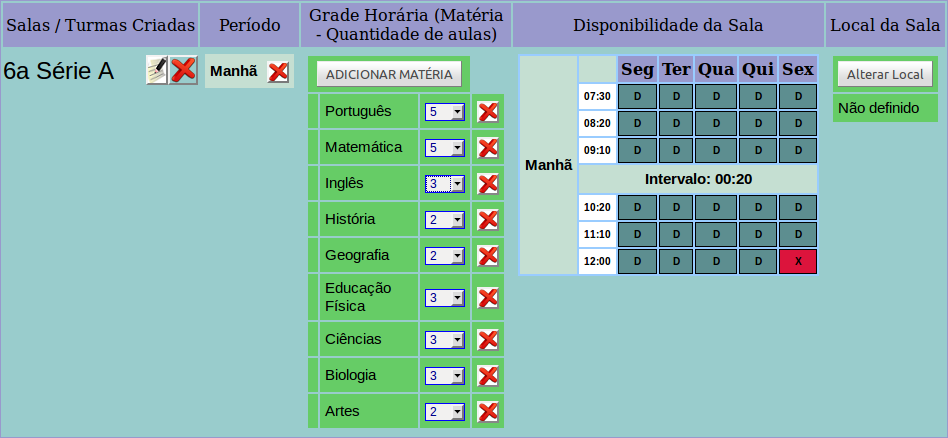
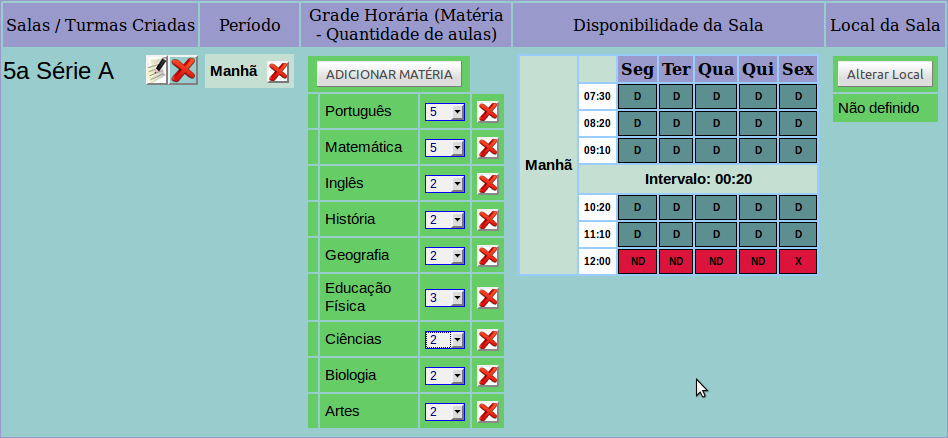
- Example with merging class groups: Class Groups "5th Grade A" and "6th Grade A" take Physical Education together.
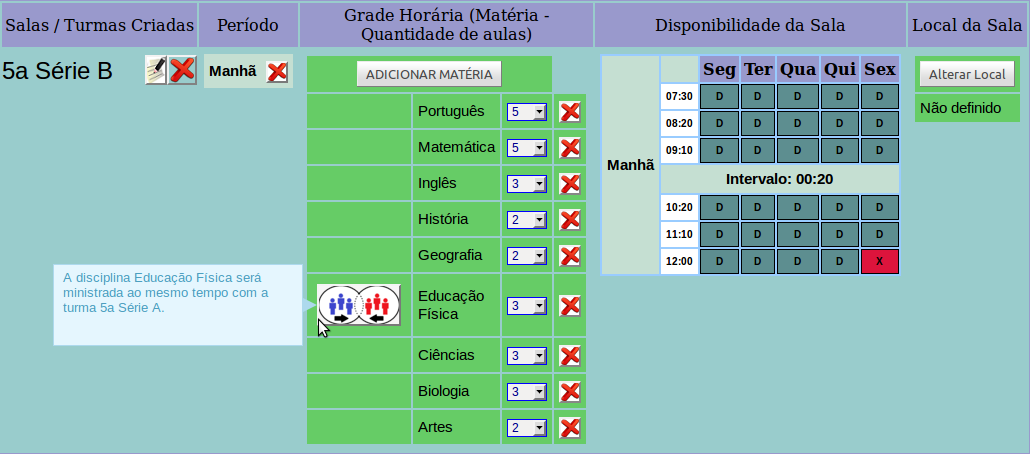
- A merging of lessons can only be created between class groups that have the same subject and quantity as their weekly curriculum grid.
- Step 5 - Teachers
- This is the most important step and the one that causes the greatest number of doubts and registration errors. You must inform which the teachers are, which subjects they teach and their respective availabilities.
- See the Step 5 options:

- * A school timetable has a solution if there is a minimum number of teacher-hours sufficient to meet the demand registered in Step 4 (Class Groups and Curriculum Grid). As long as the P button is being shown, it is certain that the solution is not possible.
- Each teacher, just like the class groups, can optionally have an available-hours restriction. Each teacher has their own table of the week, which was created in Step 2, where you can enable, disable or mark each time slot of the availability as undesirable.
- See an example: Teacher José, who teaches Mathematics and Physics, CANNOT teach on Tuesday, PREFERS not to teach on Wednesday in the last 3 time slots, teaches at most 15 lessons per week, and on Monday can teach at most 3 lessons. Has no days off registered. Teaches Mathematics MANDATORILY in 6th Grade A and CANNOT teach Physics in 6th Grade A. He WILL BE ABLE to teach Physics and Mathematics in any other class group that needs it. Will take part in the weekly meeting called "Lesson Planning".
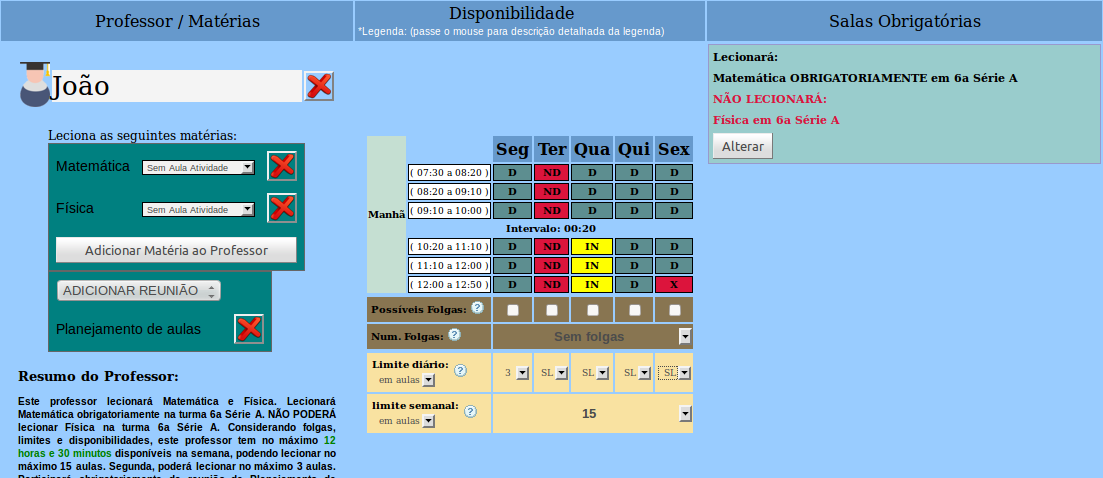
- Availabilities and Days Off
- In Horário Fácil the teacher's availability can be marked in 2 ways, and combined: By blocking the time slots of the week and/or by setting movable / fixed days off.
- If the teacher cannot teach on Tuesday, you can mark this day off in 2 different ways. See an example:
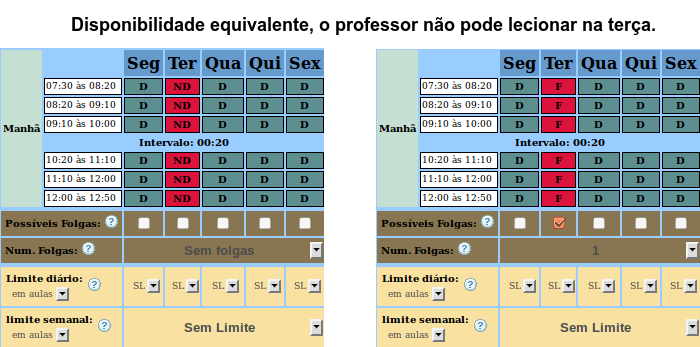
- If the teacher must have 1 day off, but not on a specific day, you must use days off to mark this availability. See below:
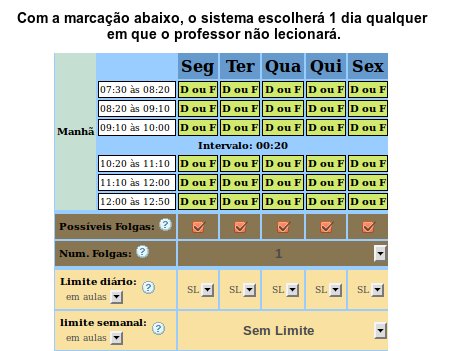
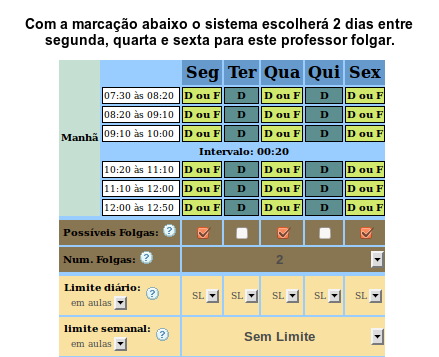
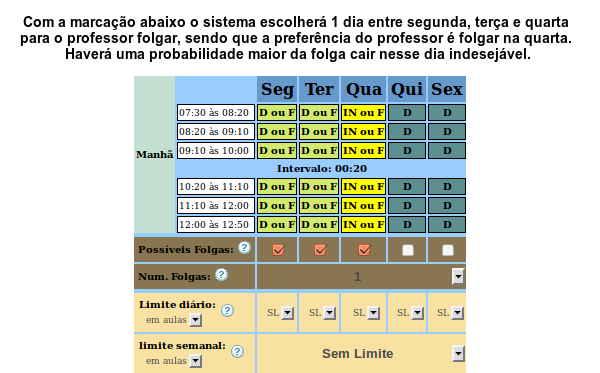
- We call them movable days off when the teacher must take at least 1 day off, but that day is not fixed. Using movable days off is less restrictive than marking the time slots in red (NA), because Horário Fácil will have a greater ability to manage the lessons, avoiding blocking the other teachers and consequently increasing the probability of a solution. However, with movable days off, the calculation of suggestions becomes much more complex and a case may arise in which the system cannot give a good suggestion for improving the timetable. Consequently, we recommend using movable days off after having obtained at least 1 feasible solution and having analyzed the system's suggestions.
- See other combinations:
- COMMON MISTAKES WHEN REGISTERING A TEACHER
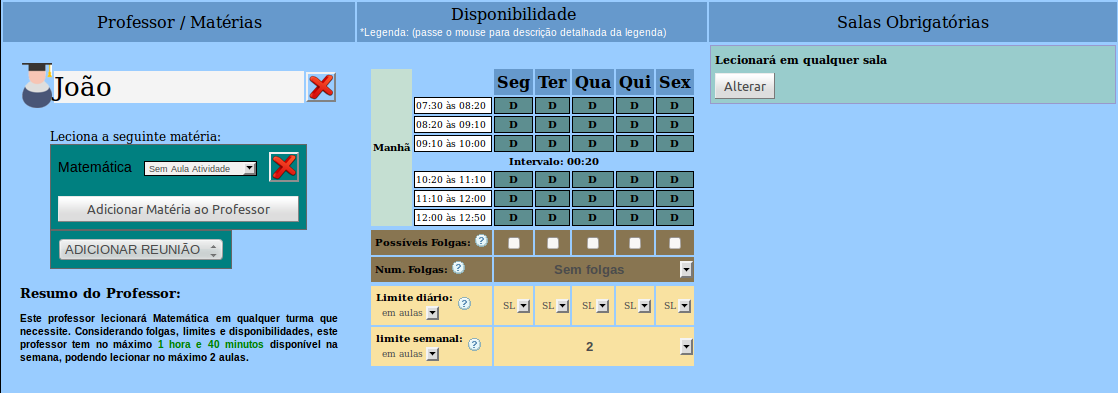
- See the example below:
- NOT RECOMMENDED PROCEDURES
- See the example below:
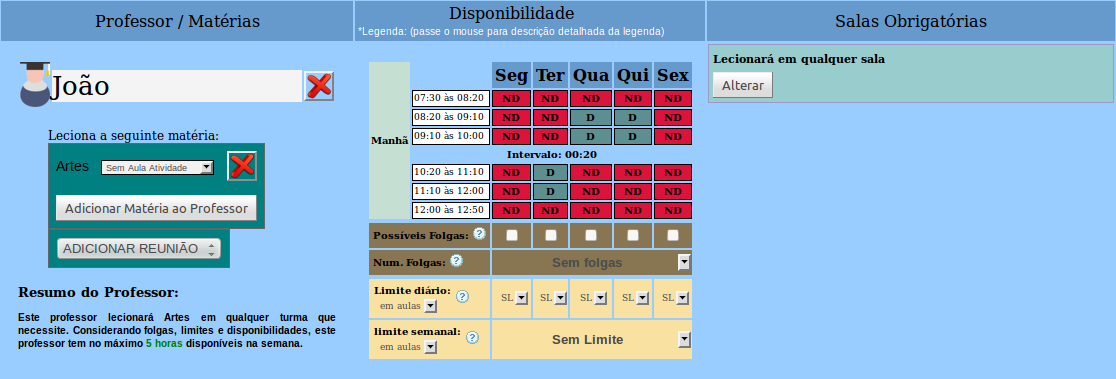
- Do not try to make the teacher's schedule consecutive by closing all of their availabilities. Only mark in red the days / time slots that the teacher really cannot teach. By registering availability as shown above, you may harm the schedule of the other teachers, because Horário Fácil will be forced to allocate this teacher's subjects in those time slots, leaving few alternatives for the other teachers.
Doing a similar procedure for all teachers will make the possibility of a solution remote, due to the very few options for managing the allocation of lessons.
Instead, mark in red only the days the teacher really cannot teach and let Horário Fácil make the lessons consecutive and minimize the teachers' days automatically. - Step 6 - Consecutive Lessons / Settings
- In Step 6 you have the options to give your timetable a final touch and make it more comfortable for your teachers and students, in addition to being able to define the processing priorities and the possibility of pinning time slots.

- Below is the explanation of the function of each item:
- Consecutive Lessons (General, by Teacher, by Subject and Detailed)
- You have the options to limit how much your timetable will have consecutive lessons. See the options:
- Not Specified
- By not specifying the type of consecutive lessons, Horário Fácil will allocate the time slots without this restriction. The lessons may be together or not, being able to be all together or totally separated as needed. This is the least restrictive option of all.
See an example of a solution with this option: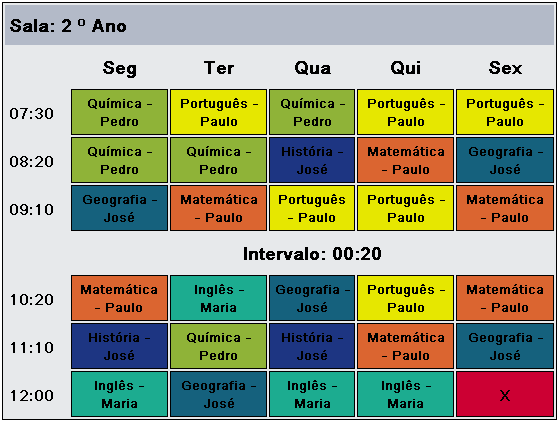
- Do Not Make Consecutive - The system will try to separate all lessons, allowing interleaving
- Choose this option if, in your timetable, for whatever reason, it is not desirable to have lessons in a row. Horário Fácil will try to space out the lessons if possible.
See an example of a solution with this option: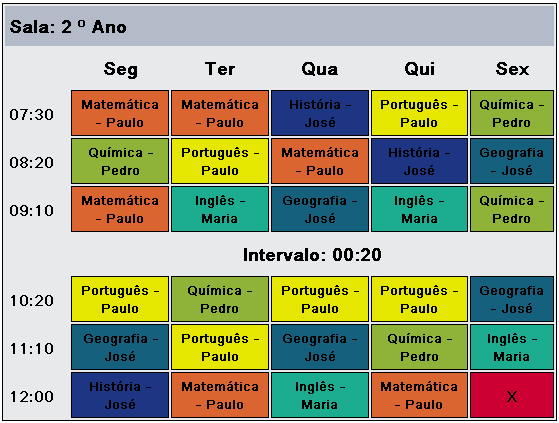
- Do Not Make Consecutive - The system will allow only 1 lesson of each subject per day
- Unlike the previous option, this one is highly restrictive. It means that Horário Fácil will only allow 1 lesson of the subject per day and consequently will not make them consecutive.
- We recommend this option ONLY in very specific cases and small timetables.
- Mandatory Consecutive - The system will only allow double lessons of this Subject or Teacher
- This option is extremely restrictive. It means that Horário Fácil will not allow just 1 lesson of the subject per day. This option is available only for Consecutive by Teacher and by Subject.
- Use this option with caution, for example for physical education, laboratory, etc.
- 2 - The system will try to group at most 2 lessons (2 in a row)
- Less restrictive than the previous option, this one will make Horário Fácil try to group at most 2 lessons in a row per day.
See an example of a solution with this option: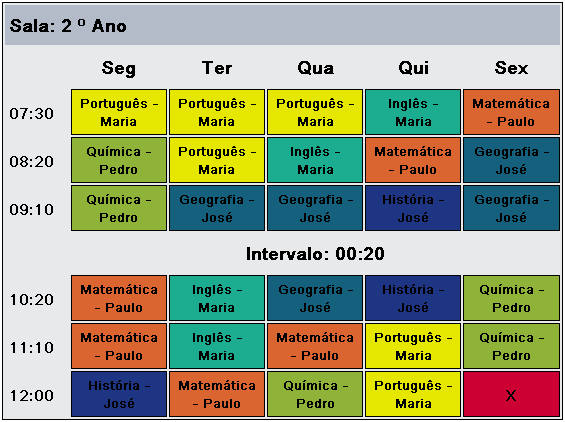
- 3 - The system will try to group at most 3 lessons (3 in a row)
- Less restrictive than the previous option, this one will make Horário Fácil try to group at most 3 lessons in a row per day.
See an example of a solution with this option: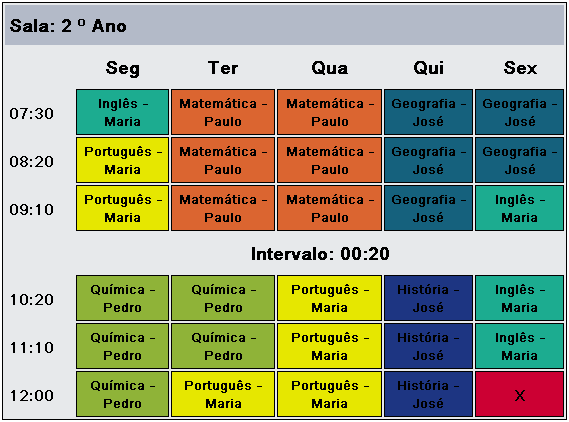
- 4 - The system will try to group at most 4 lessons (4 in a row)
- Less restrictive than the previous option, this one will make Horário Fácil try to group at most 4 lessons in a row per day.
- 5 - The system will try to group at most 5 lessons (5 in a row)
- Less restrictive than the previous option, this one will make Horário Fácil try to group at most 5 lessons in a row per day.
- Make Consecutive Without Limit - The system will try to group as many as possible
- Less restrictive than the previous option, this one will make Horário Fácil try to group as much as possible per day.
- Pin Time Slots
- This option is highly restrictive if used. Pinning a time slot can harm other teachers and even make a possible solution for your timetable unfeasible.
Only use this option if you already have experience in creating timetables and know the consequences of pinning a teacher's time slot.
Para fixar um horário simplesmente clique com o mouse no horário desejado em seguida selecione a matéria a ser alocada. Caso a matéria tenha mais de 1 professor, você deverá selecionar qual professor será alocado. - Processing Parameters
- This option serves to instruct our servers about what should or should not be included in the next processing. In addition, it is possible to determine which processing items are most important for your timetable by defining a processing order.
For example, if for a given timetable it is more important to "Eliminate the Teachers' Gaps" than to "Make the Timetable Consecutive", then set a LOWER ORDER for the first item. Horário Fácil always runs in the order of these parameters and, upon encountering an impossibility in solving a given restriction, automatically relaxes these options in order to give you a preview of the solution, so that you can make the necessary adjustments and reprocess.
Below are the options of the Processing Parameters: - Class group availability
- Performs the processing in accordance with the availability of the class groups registered in STEP 4. This option cannot be disabled and its order cannot be changed.
- Teacher availability
- Performs the processing in accordance with the availability of the teachers in STEP 5. Understand availability as the blocked time slots together with the registered fixed or movable days off. This option cannot be disabled and its order cannot be changed.
- Class Group Assignment
- In Step 5 you have the option to pin teachers to class groups, but you must know exactly where to allocate the teacher if you have chosen to use this feature, because Horário Fácil automatically allocates teachers in a way that gives the best solution in terms of the other restrictions together. If you want Horário Fácil to choose which teacher should be allocated to the class groups instead of your choices, uncheck this option to do so without having to change everything you registered in Step 5.
- Teachers with Priority in lesson allocation
- If there is competition between teachers who teach the same subjects in the same class groups, Horário Fácil will first allocate the teachers with the highest priority until the grid is filled. Configure the teachers' allocation priorities in Step 5
- daily limits
- Horário Fácil will try to allocate teachers respecting the daily limits established in STEP 5, unless you disable this option.
- Weekly Limits
- Horário Fácil will try to allocate teachers respecting the weekly limits established in STEP 5, unless you disable this option.
- Fixed Lessons
- Horário Fácil will try to respect the pinned time slots that were designated in STEP 6, unless you disable this option.
- Minimize the teachers' days
- If, for example, your timetable has 5 daily lessons and one of your teachers has a weekly workload of 5 lessons, it would be interesting for this teacher to work on just 1 day, but how to solve this problem for all teachers, respecting their availabilities and all the other restrictions. This is generally the biggest mistake we find in the registrations for building timetables. Many try to minimize the teachers' days by closing all of their availabilities in Step 5. This is an extremely not recommended procedure and will only make the probability of a solution remote. Horário Fácil automatically minimizes the teachers' days unless this option is disabled. Therefore, in Step 5, only block the teachers' availability on the days / time slots they really cannot teach and let Horário Fácil minimize their working days by keeping this option enabled.
- Eliminate the Teachers' Gaps
- This is one of the most requested problems in building timetables. Em muitas instituições, horários vagos para os professores são remunerados causando prejuizos para a mesma. Quando não são remunerados causam desconforto para os professores que tem o horário ocioso em seu expediente.
Por padrão, o Horário Fácil sempre eliminará as janelas dos professores a menos que você desabilite esta opção. - Alternating lessons
- In general, alternating lessons cause discomfort for students and teachers. It means, for example, a class having a mathematics lesson followed by Portuguese and then mathematics again. By default, Horário Fácil will always try to eliminate the alternating lessons unless this option is disabled.
- Gaps in the students' schedule
- Gaps in the students' schedule cause discomfort for them and disorganization in the institution, because just imagine what the students will do during the free time while they wait for the next lesson. By default, Horário Fácil will always try to eliminate the gaps in the students' schedule unless this option is disabled.
- Consecutive Lessons Configuration
- In this Step 6 there are the options to define the consecutive lessons configurations by subject, by teacher, general or detailed. Disabling this item in the processing parameters is equivalent to running the timetable solution with all the consecutive lessons configuration options set to "NOT SPECIFIED".
- Final Step - Process your schedule's solution
- GRID - Processing Result
- Solution Editor - Create or edit grid solutions
- The Horário Fácil solution editor allows you to create your own solution or edit an existing solution that may have been created by the Horário Fácil Team or by the user themselves.
- This tool was created with the aim of allowing the creation of solutions in a semi-manual way, blocking the common errors of this procedure and allowing you to find the possible problems of availability or fitting of teachers' lessons into the class groups.
- Get to know the Horário Fácil editor - See the videos below:
- Learn to select a Class Group - Teacher - (Subject / Subject) combination:
- Allocating the teachers to the class groups:
- Display problems
- The Horário Fácil screens are best viewed with the MOST RECENT internet browsers Google Chrome or FireFox and a screen resolution of 1200 x 768 or higher.
- If you are using an old version of internet explorer mainly, some display problems may occur, such as scroll bars that do not appear and slow loading speed.
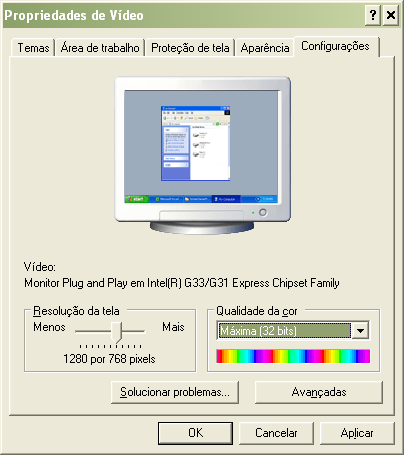
To solve the scroll bar problem, it is necessary to increase your system's resolution to a minimum of 1200 x 768. - See how to proceed to change the resolution in Windows:
- Minimize todas as janelas do seu desktop e CLIQUE COM O BOTÃO DIREITO DO MOUSE ou abra o painel de controle do windows e CLIQUE EM CONFIGURAÇÕES DE VÍDEO.
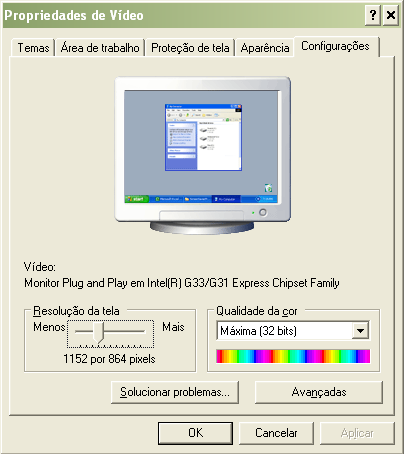
- Then, change the resolution to at least 1200 x 768, or higher, and click APPLY and OK.
- If you still have display problems, take a screenshot of the screen with the problem and send it by email to contato@horariofacil.com so that we can help you.